A free Find

Free Sedona Lightroom Presets

Ten warm, earthy edits built for red rocks, desert light, and the wonderfully unruly colors of Northern Arizona.

Free download · 10 presets · Lightroom desktop and mobile

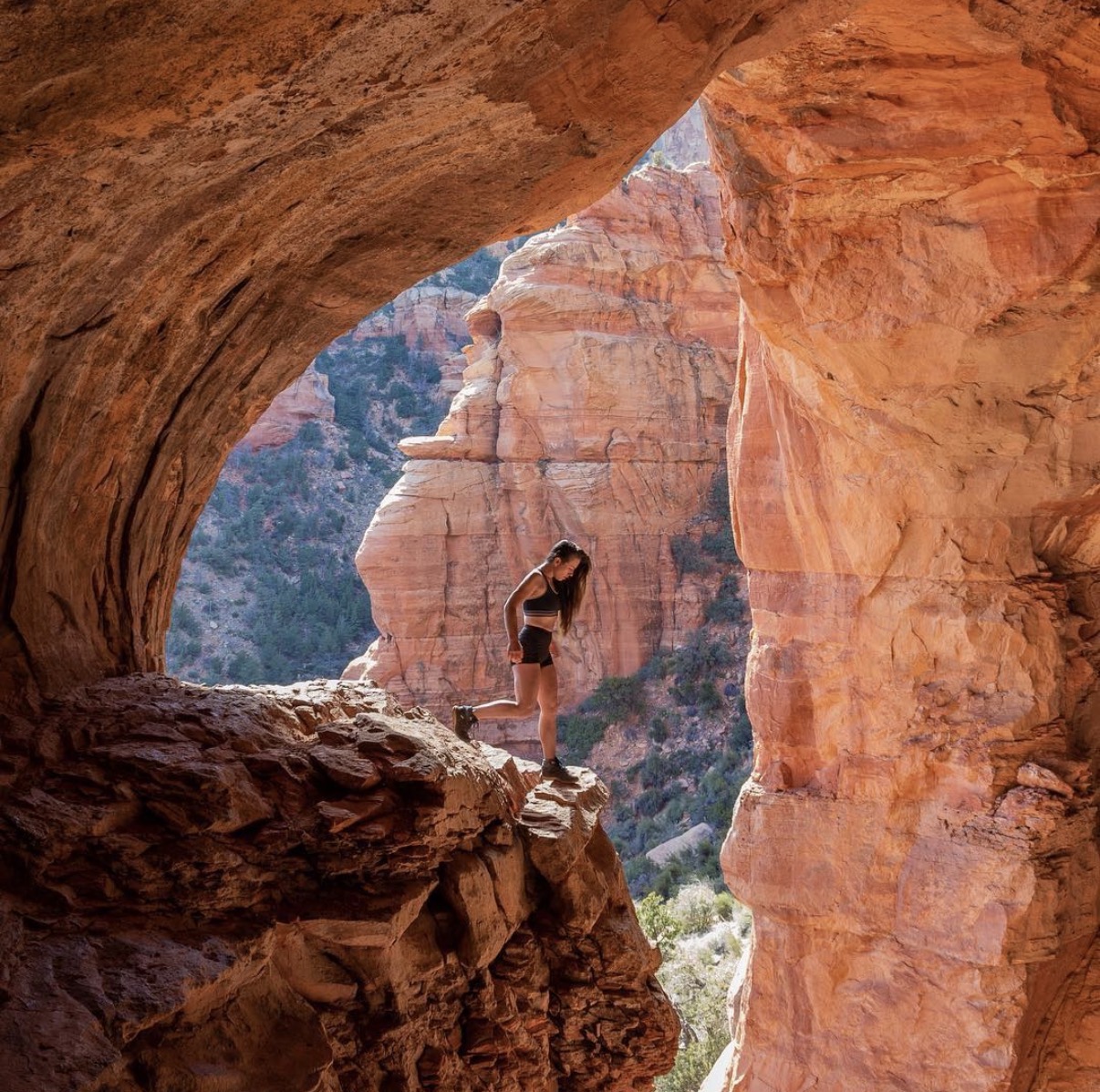
Shannon Roberts walking through a red rock cave in Sedona, Arizona

What you get

A little Sedona light, wherever you happen to be.

I created these presets to bring out warm desert tones, rich red rock, natural skin, and the depth that can disappear when a camera tries to make sense of Arizona light.

Use them as a starting point, then adjust exposure and white balance for your image. Every photograph is different. That is part of the fun—and occasionally the chaos.

  • 10 XMP presets for Lightroom and Adobe Camera Raw on desktop
  • 10 DNG presets for the free Lightroom mobile app
  • Simple installation instructions below and inside the mobile download

How to install

Choose your Lightroom.

You only need the version that matches where you edit.

Desktop

Lightroom or Lightroom Classic

  1. Download and unzip the desktop file.
  2. Open Lightroom and select a photo. In Lightroom Classic, go to the Develop module.
  3. Open the Presets panel, choose the plus or three-dot menu, then select Import Presets.
  4. Select all 10 Sedona XMP files and import them.
  5. Choose a Sedona preset, then fine-tune exposure and white balance.
Save the desktop instructions
Mobile

Lightroom mobile

  1. Download and unzip the mobile file in your phone's Files app.
  2. Import the 10 DNG files into the free Lightroom mobile app as photos.
  3. Open a DNG, tap the three-dot menu, and choose Create Preset.
  4. Name it Sedona 01 and save it to a new Sedona preset group.
  5. Repeat for the other files, then apply them from the Presets panel.

Before you panic

A few quick fixes.

The preset looks too bright or too dark.

That is normal when your starting exposure differs from the original image. Apply the preset, then adjust Exposure first and White Balance second.

I cannot find the presets after importing them.

Check the Presets panel's visibility menu and make sure the imported Sedona group is selected. On mobile, confirm you saved each DNG as a preset rather than only importing it as a photo.

Can I use these on JPEG and phone photos?

Yes. They can be applied to RAW, JPEG, and phone images, although every file responds differently and may need small adjustments.

Can I share the preset files?

Please send friends to this page instead. The presets are free for your own photography, but the files may not be resold, repackaged, shared, or redistributed.

Ready when you are

Pick your version and go make something beautiful.

Back to all Finds